


As global business communication continues to grow, industries such as international hotels, healthcare institutions, government service centers, airports, exhibitions, and customer service counters increasingly rely on commercial AI translation devices to break language barriers.
ShiMeta Dual-Screen AI Translator is designed specifically for face-to-face multilingual communication, helping businesses provide instant translation for international visitors and customers.
However, during daily operation, users may occasionally encounter issues such as network connection failure, language selection problems, inaccurate translation, screen settings confusion, or voice playback issues.
This guide covers the 9 most common troubleshooting questions to help you quickly solve problems and keep your translation device running smoothly.
A stable internet connection is essential for real-time AI translation.
The device supports both Ethernet and WiFi connection.

Ideal for:
Simply connect an Ethernet cable to the LAN port at the bottom of the device.
The system will automatically connect to the network for stable operation.
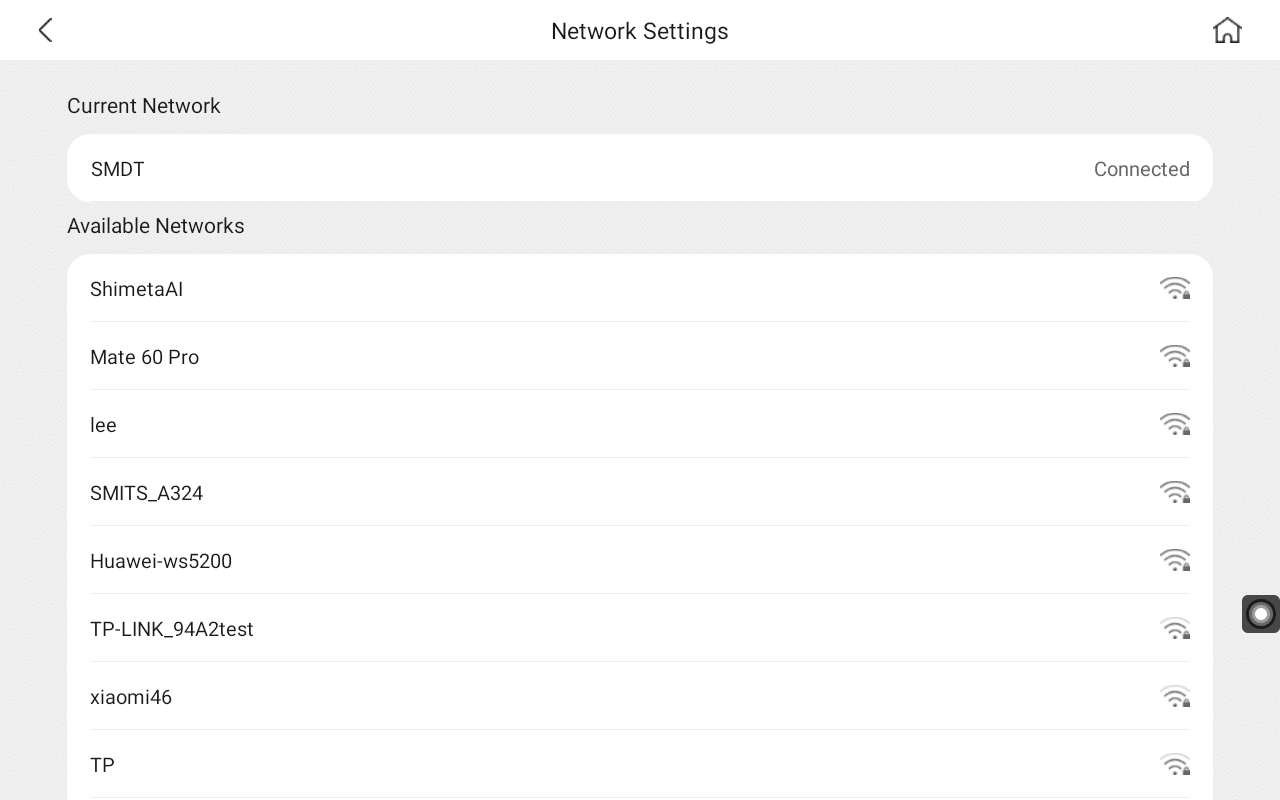
Suitable for:
Steps:
If some languages are unavailable, the issue usually comes from server region configuration.
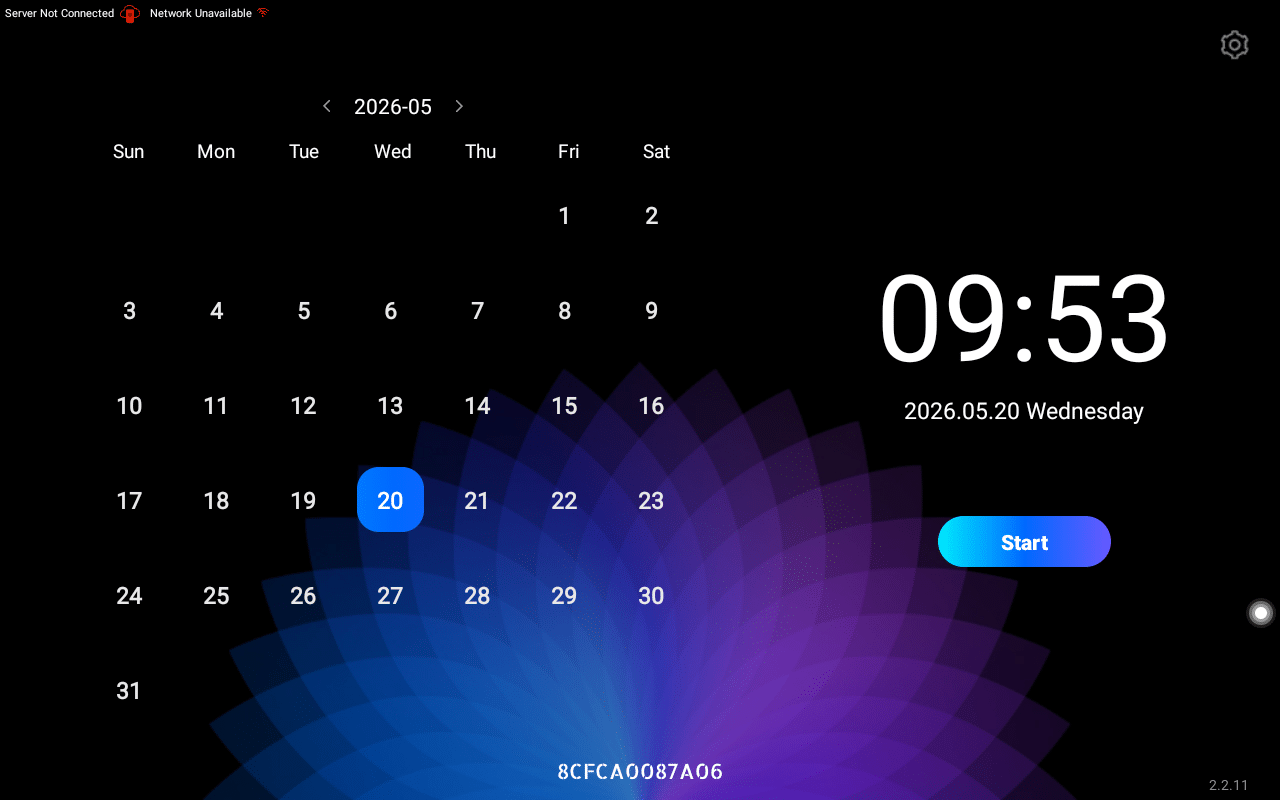
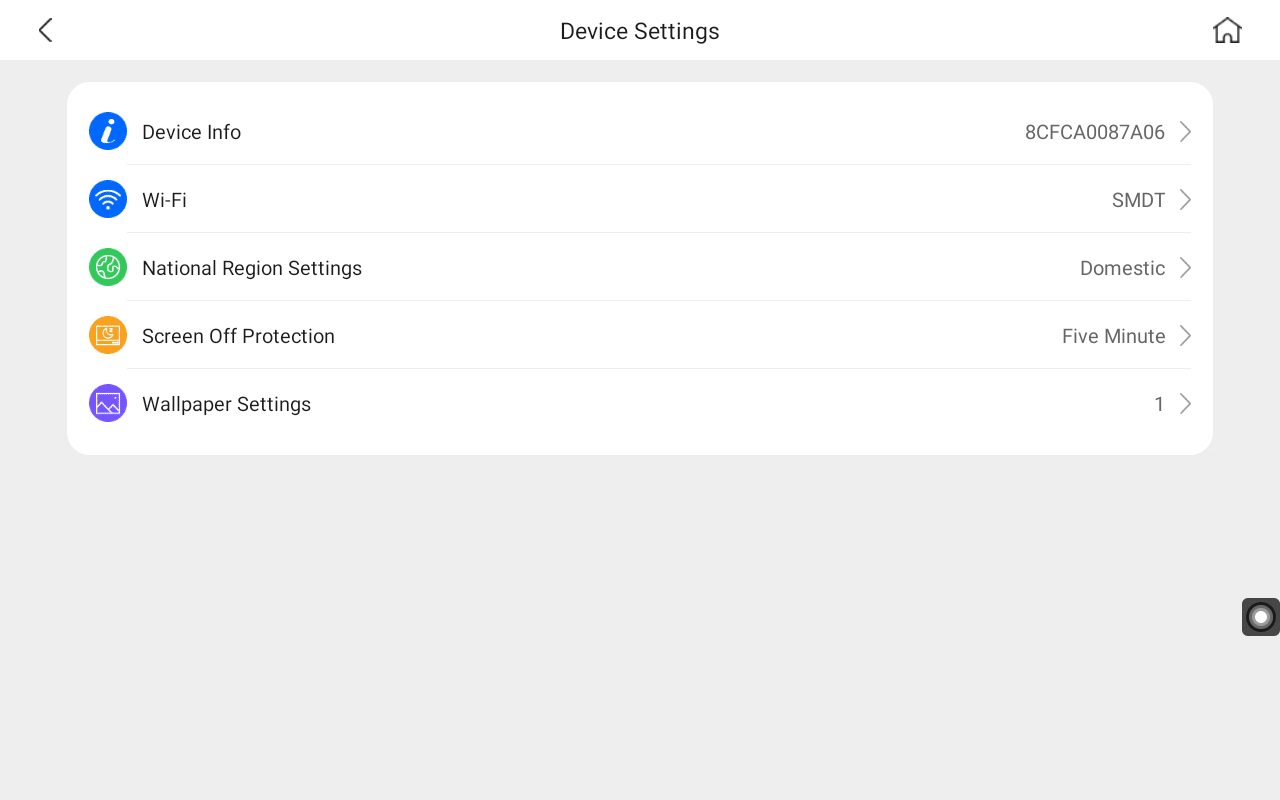
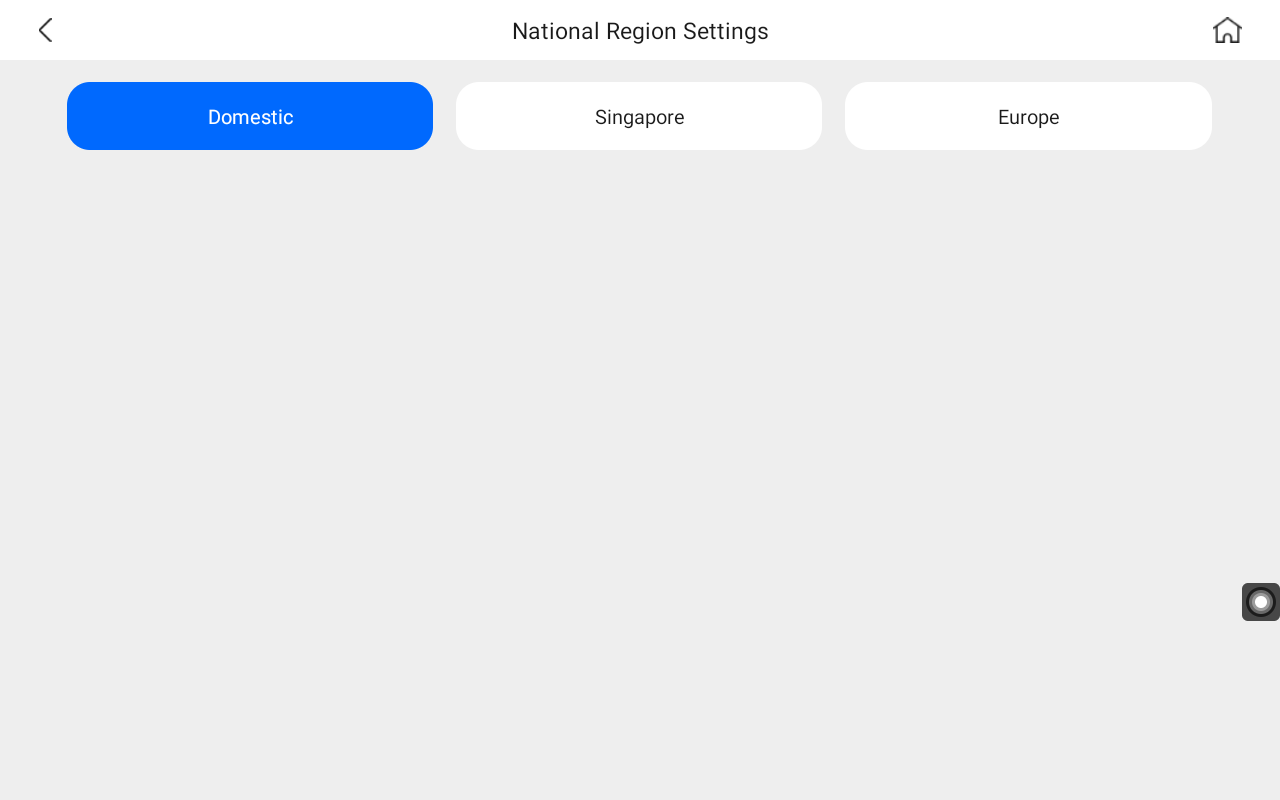
Settings → Device Settings → Country/Region Settings
The device offers 3 server regions:
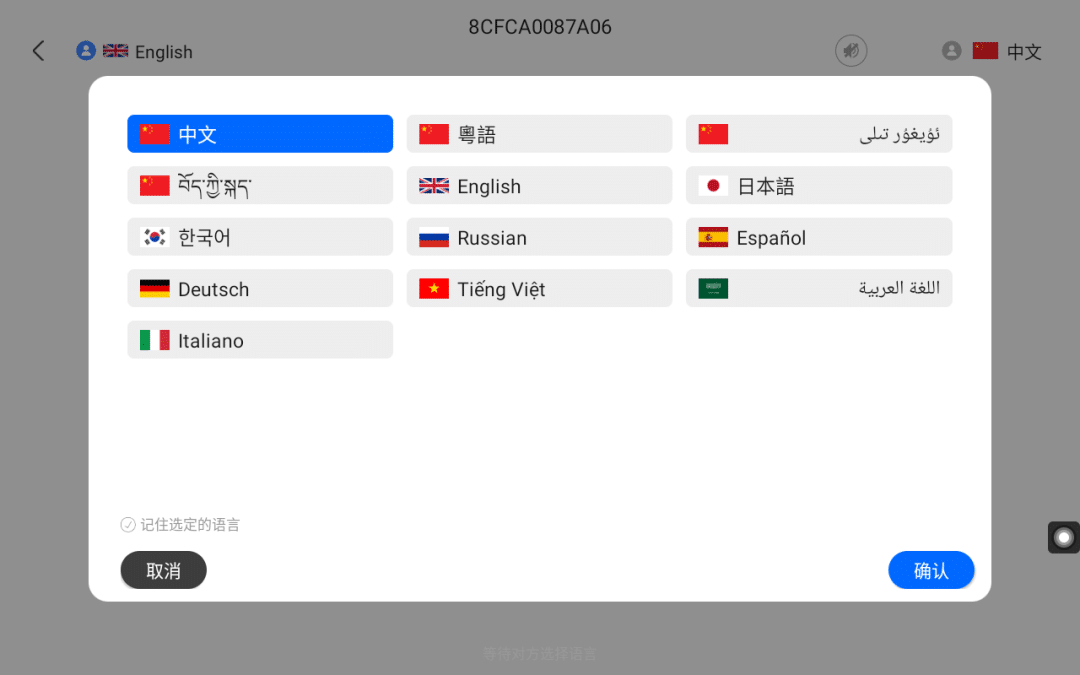
Best for:
Supports Chinese, English, Cantonese, Japanese, Korean, Russian, German, Vietnamese and more.
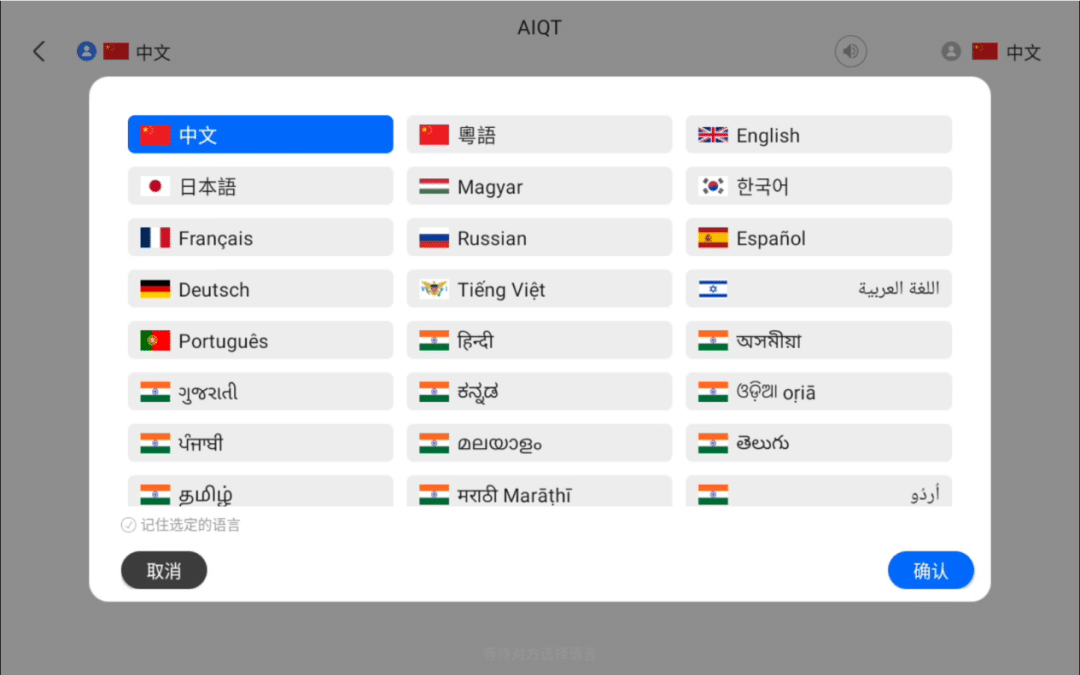
Best for:
Supports 79 global languages with excellent small-language coverage.
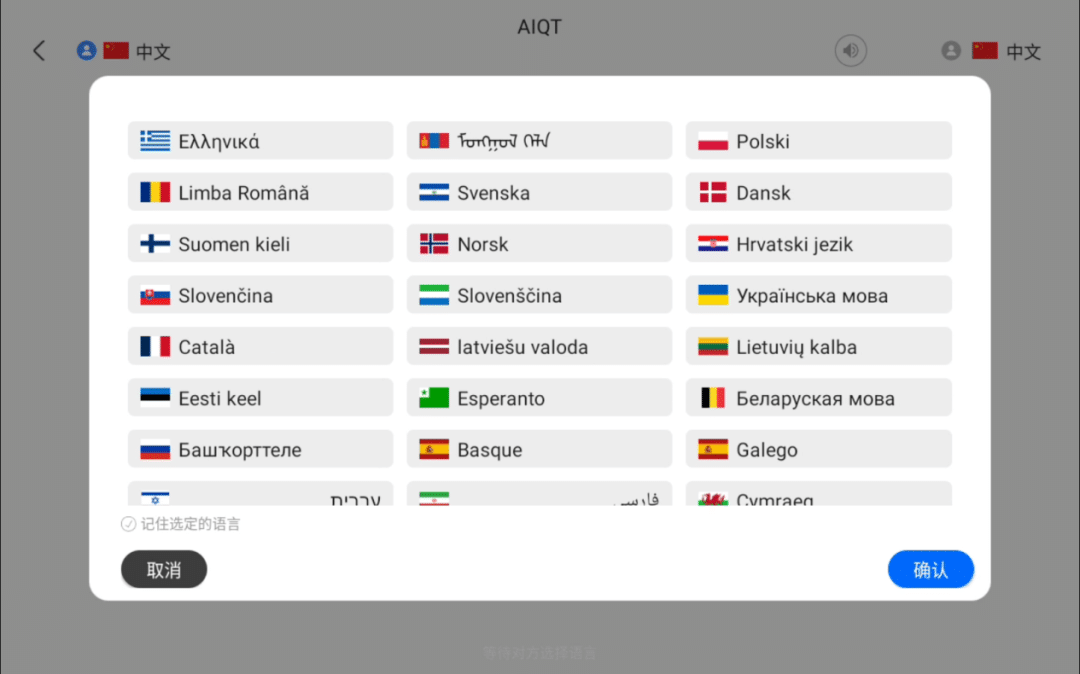
Best for:
Supports 50+ European languages.
If translation results are incorrect:
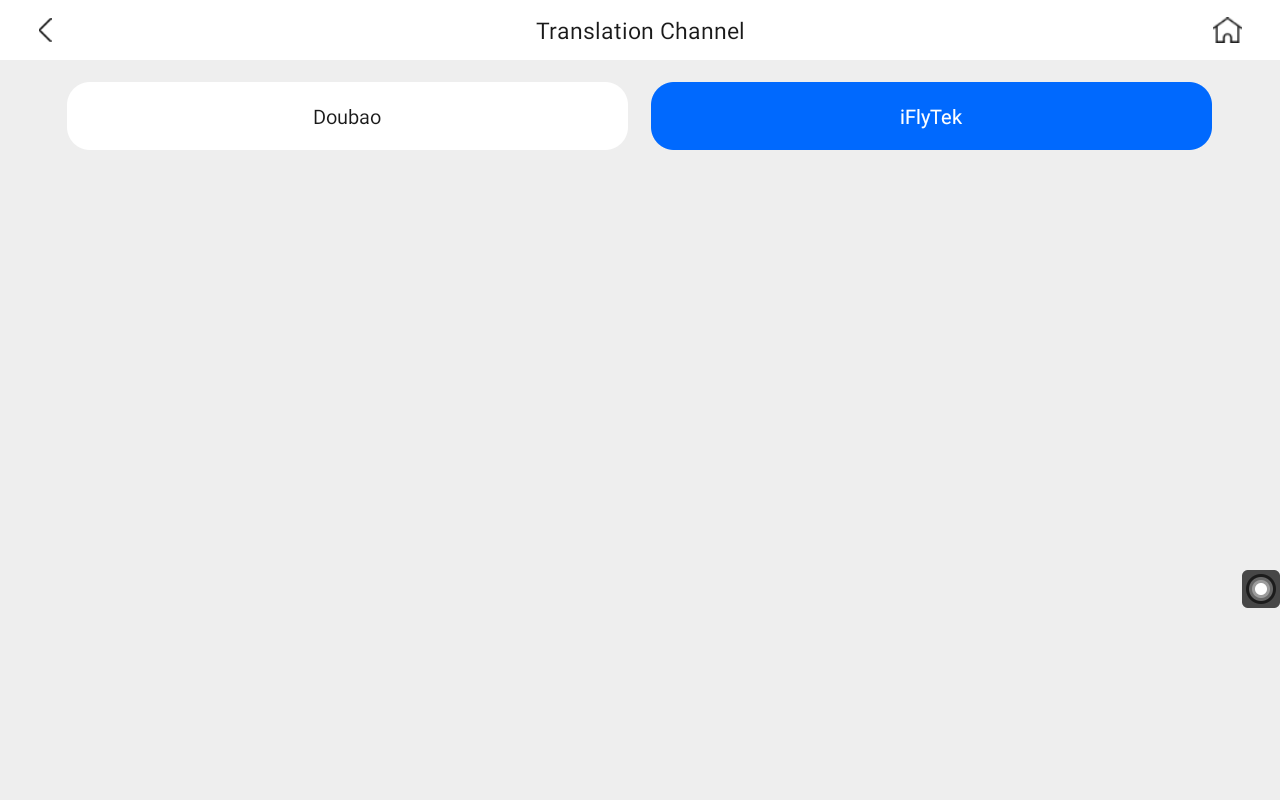
Make sure the main screen and customer screen language settings are correct.
Avoid:
Go to:
Settings → Translation Settings
Switch between available AI translation engines.
Poor network quality may interrupt translation data transmission.
For elderly users or long-distance visibility.
Go to:
Settings → Accessibility Settings → Font Size
Choose:
This improves customer communication in public service environments.
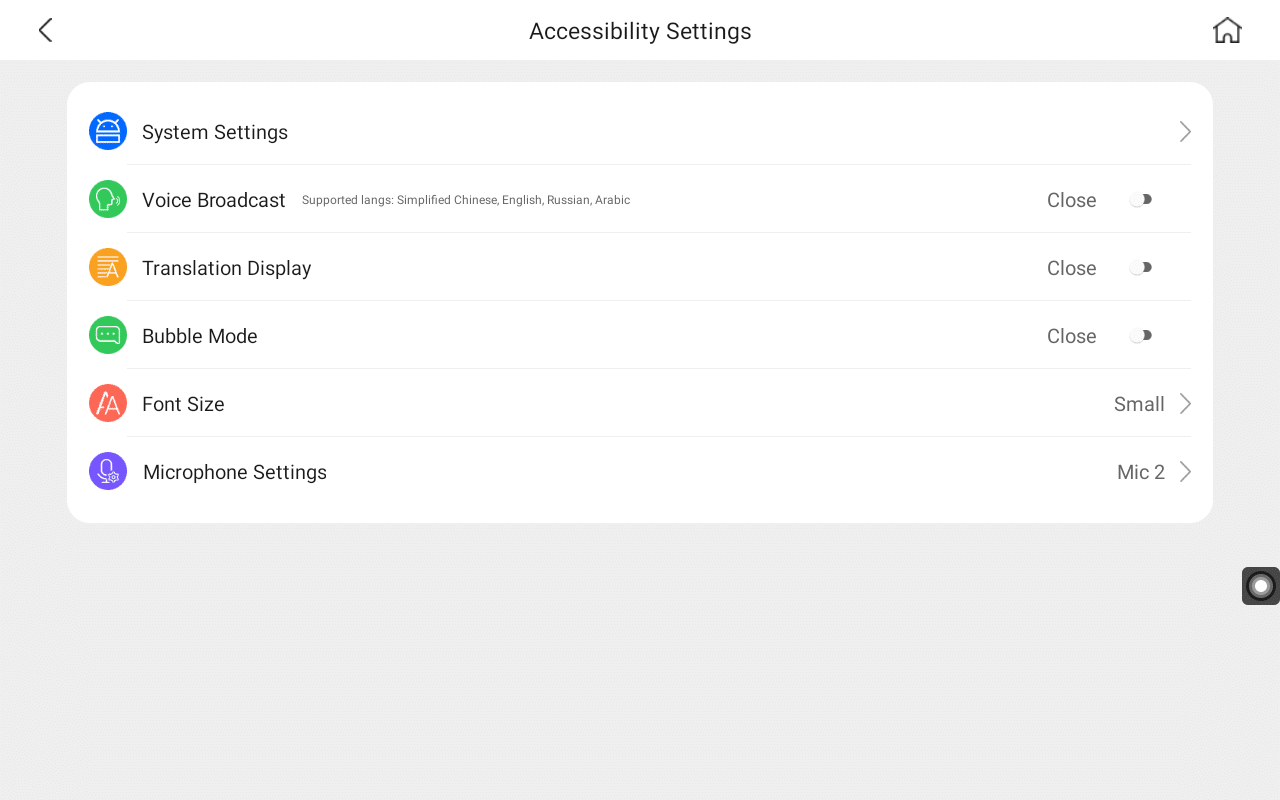
The device supports voice broadcast for translated content.
Tap the Speaker Icon on the translation page.
Go to:
Settings → Accessibility Settings → Voice Playback
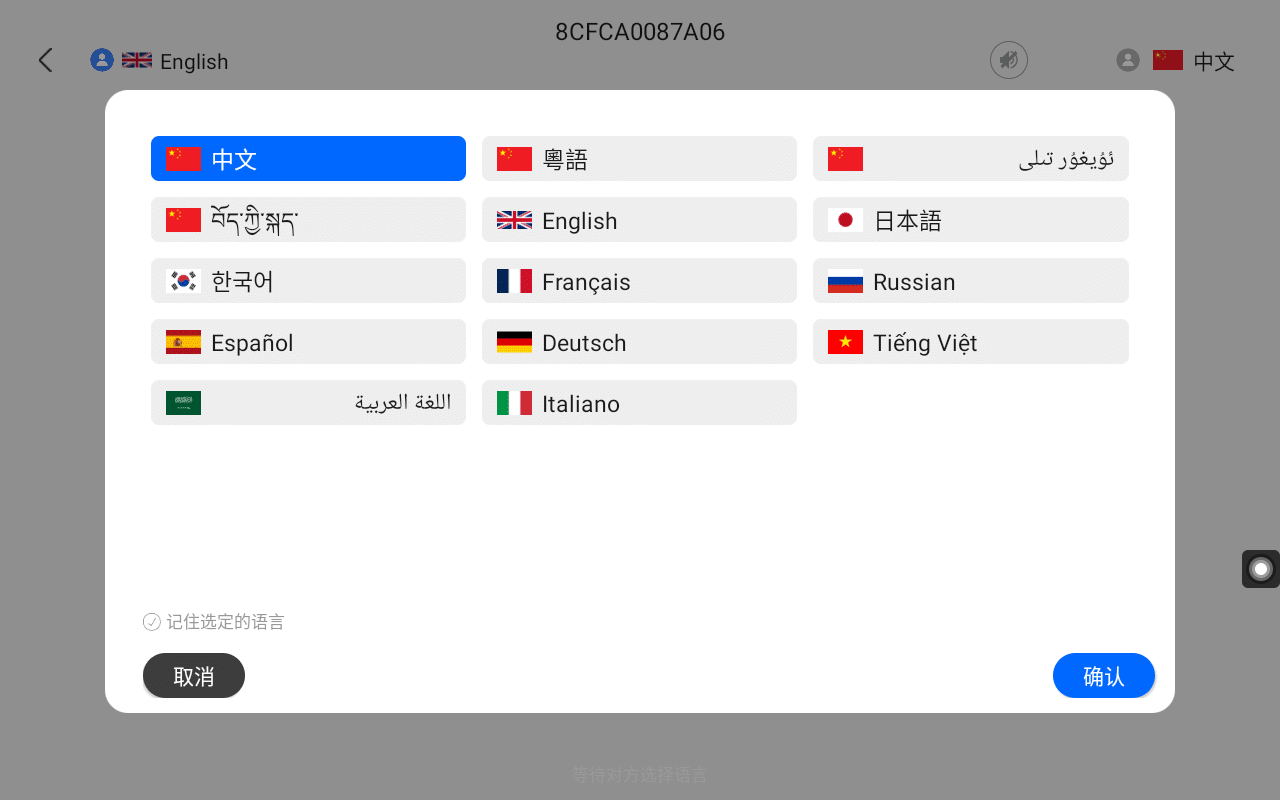
Supported languages include:
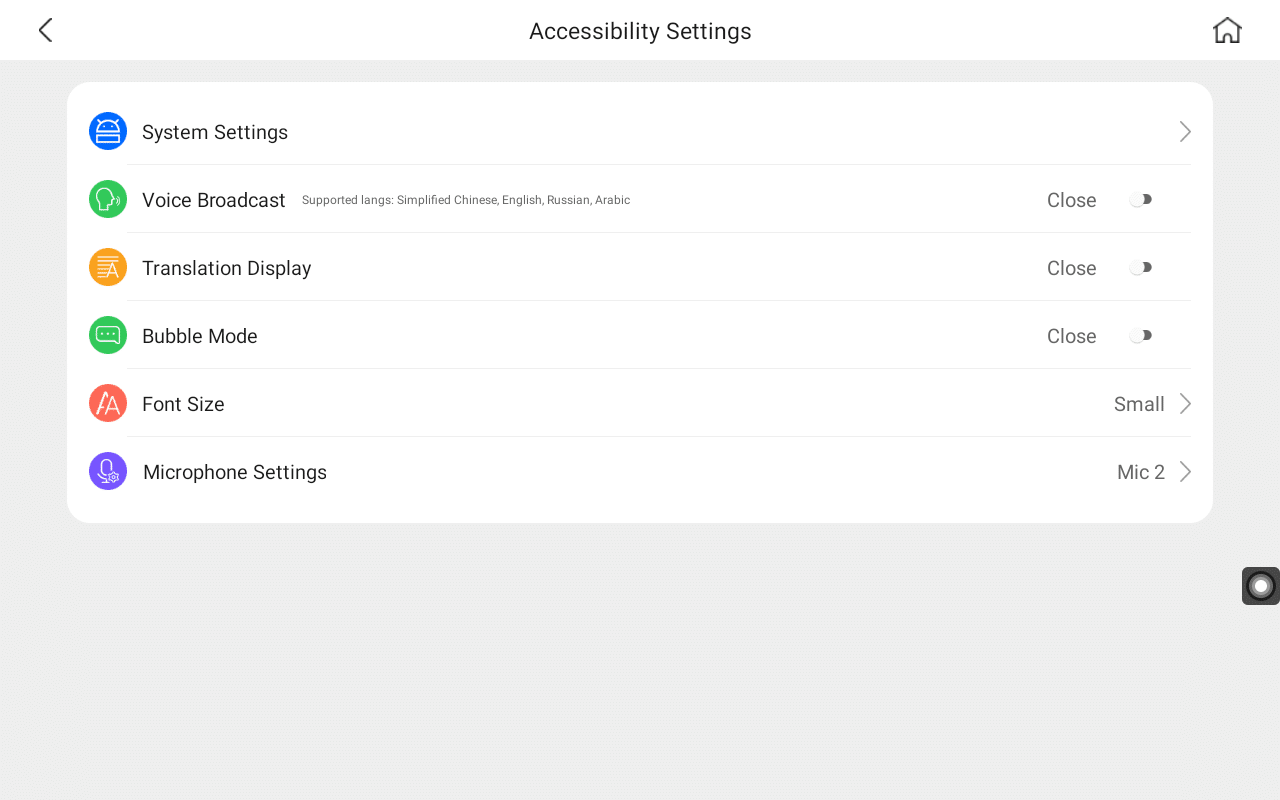
For customer-facing conversations, both screens can show bilingual translations simultaneously.
Go to:
Settings → Accessibility Settings → Translation Display
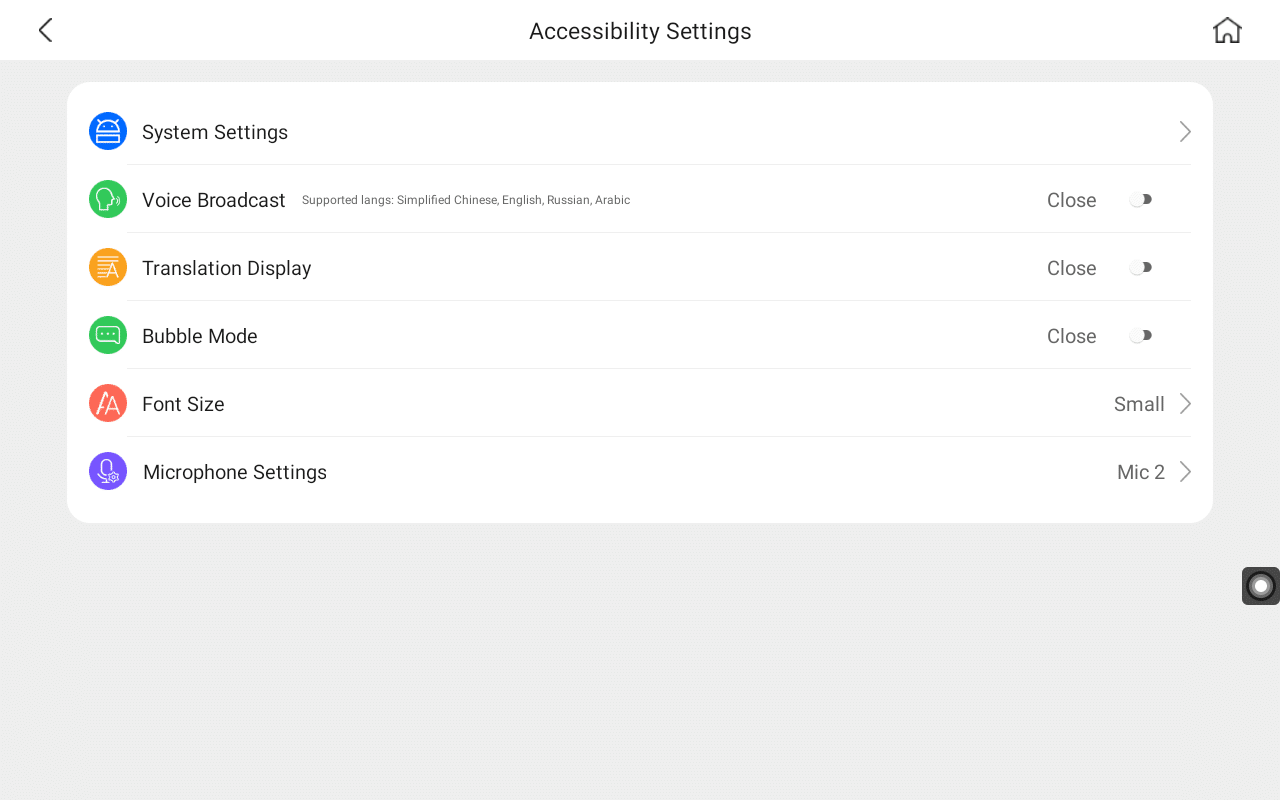
Enable dual-screen mode.
This is perfect for:
You can customize the device name for easier management.
Path:
Settings → Device Settings → Device Information
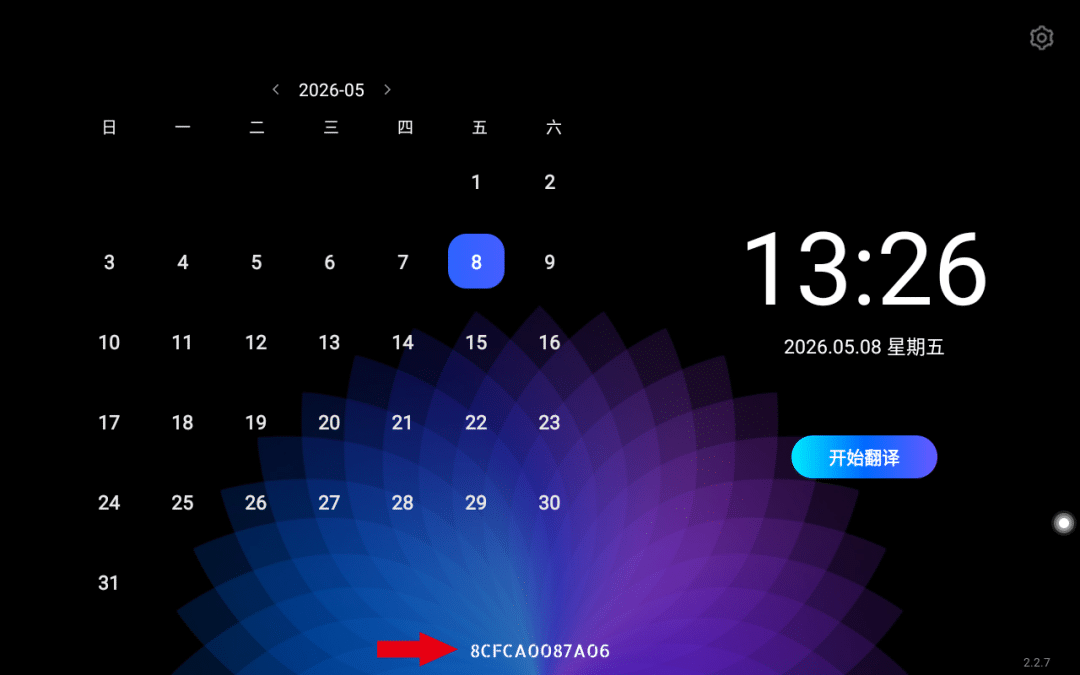
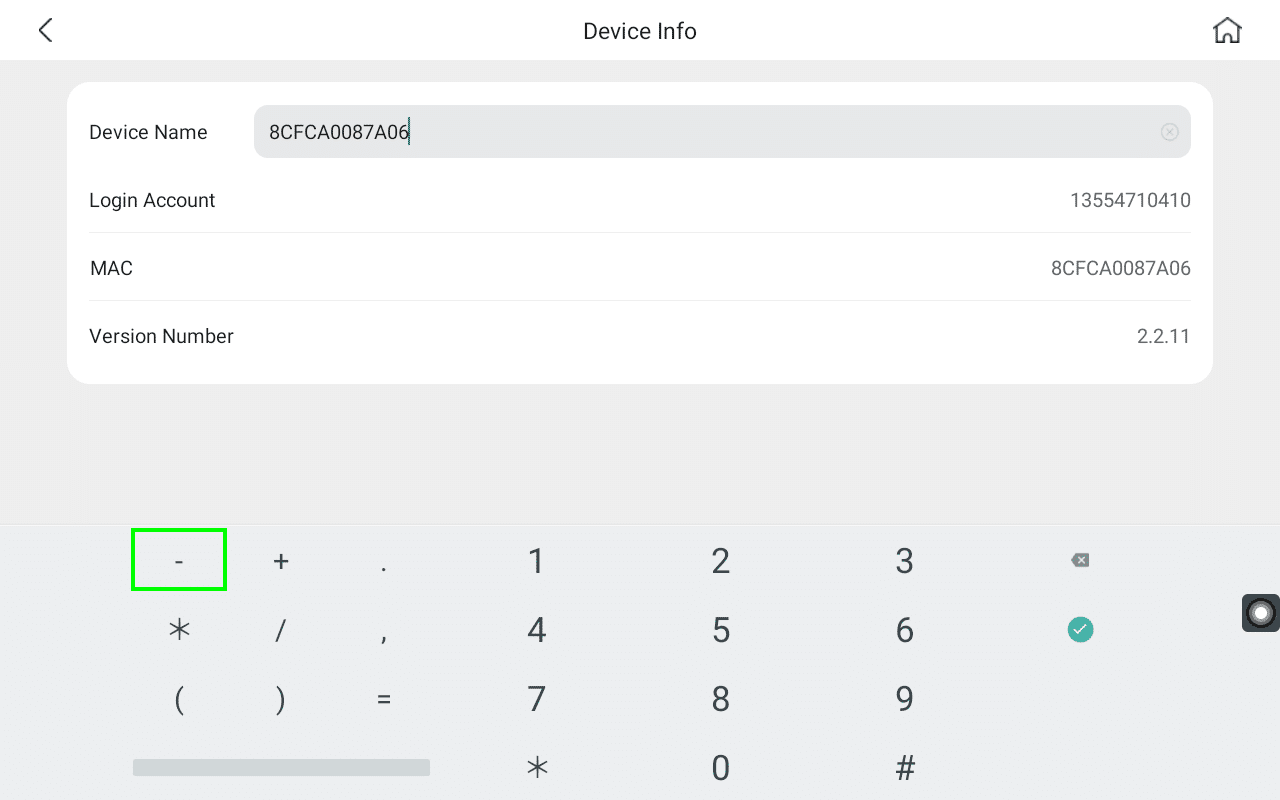
Tap the device name field and edit.
Useful when managing multiple translator devices.
For front desk or all-day service counters.
Go to:
Settings → Device Settings → Screen Timeout
Available options:
The device supports two working modes.
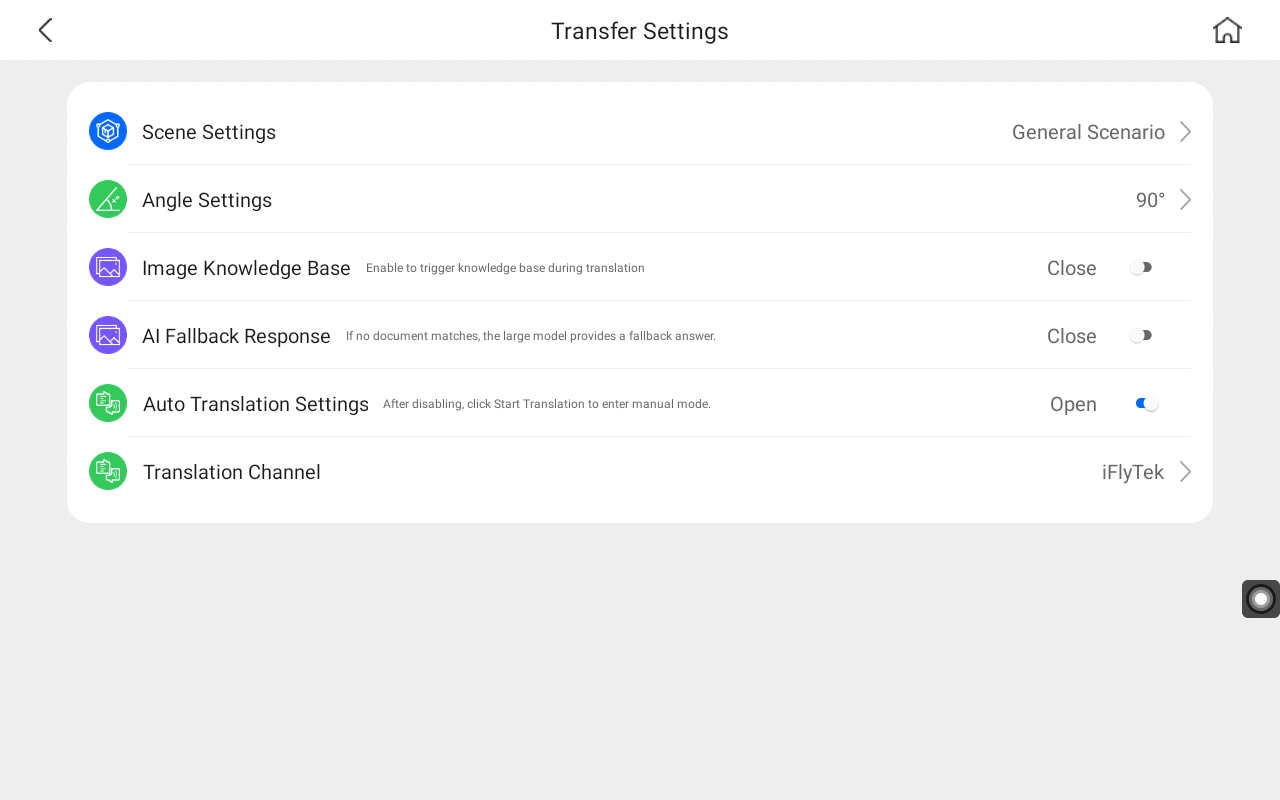
The system automatically detects speech and starts translation.
Best for:
Users must press the translation button before speaking.
Best for:
Path:
Settings → Translation Settings → Auto Translation
Turn ON/OFF as needed.
ShiMeta Dual-Screen Commercial Translation Device is built specifically for professional multilingual communication.
Ideal for:
✔ International Hotels
✔ Government Service Centers
✔ Hospitals
✔ Airports
✔ International Trade Shows
✔ Tourist Information Centers
✔ Smart Reception Desks
Key advantages:
Looking for a reliable commercial AI translator machine for your business?
ShiMeta provides OEM/ODM multilingual translation devices for global partners.
Contact our team today to build your intelligent multilingual communication solution.
 Shimeta


