


How to Set Up Kiosk Mode on Windows 10 and 11: Step-by-Step Guide
Kiosk Mode is a technique that allows devices to only execute certain programs and settings. In Windows 10 and Windows 11, it acts as a lock-down mechanism, enabling administrators and IT teams to restrict devices to running a single application (or, in the case of Windows 10, a select collection of applications). Digital advertising displays, point-of-sale (POS) terminals in self-service restaurants, and self-check-in kiosks at airports are just a few examples of the devices that can be secured with this degree of control. Kiosk Mode makes sure that users are unable to change the device’s settings, access additional features or programs, or use the device for inappropriate purposes.
What is Windows 10 Kiosk Mode?
Windows 10 Kiosk Mode is a security feature that restricts the user experience for public or shared devices by locking down a device to run just particular apps and websites. This feature, also known as Assigned Access, is perfect for point-of-sale terminals, self-service checkouts, digital signs, and other specialized tools since it keeps users from accessing the desktop, Start menu, or other system capabilities.

What is Windows 11 Kiosk Mode?
With the help of a feature called Windows Kiosk mode, IT administrators can set up a Windows 11 device to run a single application (or a small number of apps) in a restricted environment. Limiting the user experience to what is necessary is the aim. Users can only access the apps and settings that you permit.
Single- vs. Multi-Application Kiosk Mode
You may decide between single-app and multi-app kiosk mode based on your company’s requirements and the kind of kiosk your end user wants.
It can run one app, access one webpage, or run one Store app in single-app kiosk mode, usually in full-screen mode. The user is unable to browse the web, open other apps, go to the desktop, or use the Start menu or taskbar while in this mode.
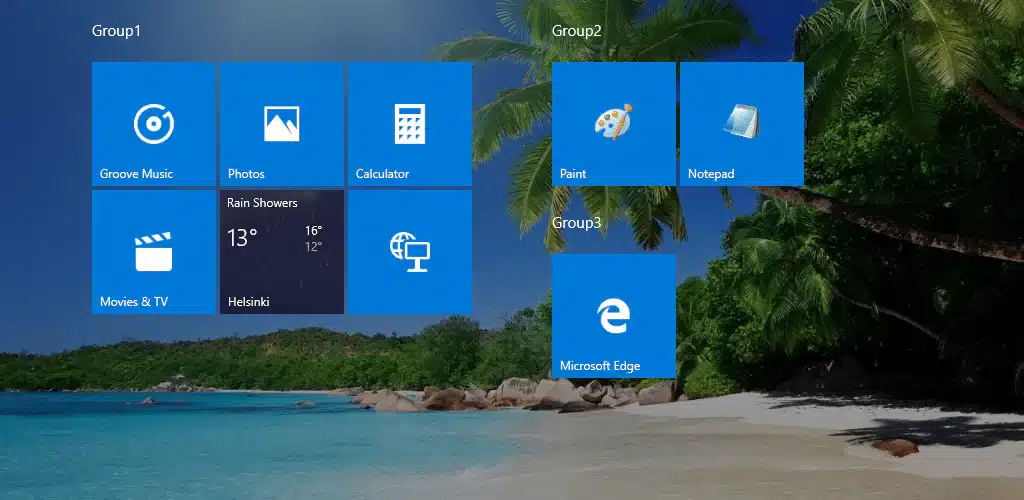
Users can access various programs from the desktop in multi-app kiosk mode, however the taskbar and desktop can only be customised to allow users to use predefined apps. For use cases like shared workstations, self-service kiosks, and student registration devices, this mode is a great choice.
How to set up Kiosk Mode on Windows 10 and 11
Setting up kiosk mode for Windows 10 and 11 devices is quick and easy, but before you can get started, you’ll first need to turn on UAC (user account control). It’s also important to note that you cannot use remote desktop connection with kiosk mode.
For setting up single-app kiosk mode in local settings:
The following procedures must be followed in order to configure kiosk mode for Windows 10 versions 1809+ and Windows 11:
Choose the settings icon by pressing the Windows key.
Choose Accounts and Family & Other Users (also referred to as “Other users”).
You might be logged into a regular user account if nothing of these choices is displayed. To view this option in this situation, you must log into the administrator account.
Click Assigned access under Set up a kiosk, then choose Get started.
You will then be asked to create an account.
You must input the account’s name in order to do this. “Choose an existing account” will appear if the device already has any local standard user accounts set up.
Select the app you want to use in kiosk mode.
Click Close and Next.
You will be able to use your device as a kiosk once your account setup is complete. You must either set up an auto-login account or connect into the newly created account in order to activate kiosk mode. The application you have chosen will launch automatically when you log in. Press Ctrl+Alt+Delete to close the application.
Why is Windows 10 or Windows 11 Kiosk software necessary?
Every organization needs Windows 10 and 11 Kiosk software for the following reasons:
Only one app can be added to Kiosk Mode with Windows 10 and 11 Single App Mode, and administrators must manually supply the apps on the devices. On the other hand, Windows 10 devices can be provisioned into single-app or multi-app Kiosk mode using a Windows Kiosk program such as Mobile Device Manager Plus.
Laptops, desktop computers, phones, and Surface Pro tablets can all use Windows 10 and Windows 11 Kiosk Mode. A Windows Kiosk program offers a single console for managing all Windows 10 and 11 devices and setting them up for Kiosk Mode.
Advantages of Windows 10 and Windows 11 Kiosk Software
There are numerous advantages to using Windows Kiosk software to activate Kiosk Mode on Windows 10 and Windows 11 computers, including:
Bulk Kiosk provisioning: Unlike Windows 10 or Windows 11 Single App Mode, which must be manually enabled on each device, kiosk software allows administrators to remotely supply several devices into Win 10 Kiosk Mode or Win 11 Kiosk Mode.
Provision multiple apps in Kiosk Mode: Multiple apps can be provided into Windows 10 Kiosk Mode with the help of kiosk software; this is not feasible with Windows 10 Single App Mode.
Support for enterprise apps: While Windows 10 & 11 Single App Mode is only compatible with Windows Business Store apps, administrators can also enable the use of enterprise apps on Windows 10 Kiosk Mode or Windows 11 Kiosk Mode using kiosk software.
Silent app installation: When enabling Kiosk Mode, administrators have the option to choose whether or not apps that aren’t already installed on devices provisioned under Windows 10 Kiosk Mode or Windows 11 Kiosk Mode should be installed automatically.
FAQ
What is Kiosk Mode?
Kiosk Mode is a configuration that allows devices to run a single app or a set of apps while restricting user access to other functionalities or settings. This ensures a secure and focused experience, making it ideal for public-facing devices such as information kiosks, digital signage, and point-of-sale systems.
How to put windows 10 apps on desktop?
Windows 10 apps can be placed on your desktop by either making a shortcut from the app’s file location or by dragging and dropping them from the Start Menu. The file location technique is helpful for apps that are difficult to find in the Start Menu, but the drag-and-drop method is the fastest for the majority of popular applications.
不常看到, 如此温暖又有信息量的博客。太棒了。