


In a world where dynamic, real-time content is essential for customer engagement, Android media players have emerged as a flexible, cost-effective solution for managing digital signage. Whether you’re in retail, education, hospitality, or corporate environments, an Android-powered signage player lets you manage, update, and monitor content with ease.
This complete guide will walk you through everything you need to know about managing digital signage content with Android media players, including installation, CMS integration, content scheduling, remote monitoring, and best practices.
Android’s popularity in mobile devices has translated well into the world of digital signage. Here’s why:
At ShiMeta Devices, we offer a complete line of high-performance Android signage players designed specifically for commercial applications.
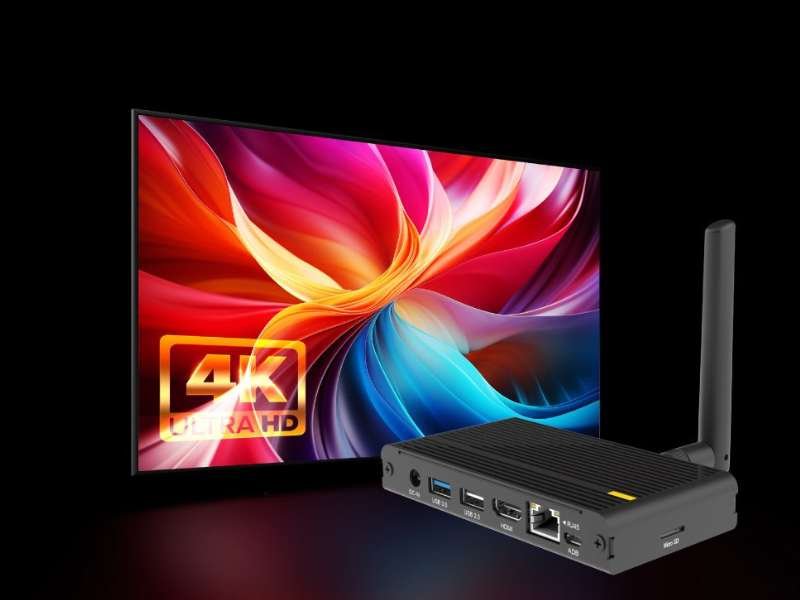
Let’s dive into how to set up and manage your signage content effectively.
Step 1: Install a Digital Signage CMS App
Your Android media player will serve as the backbone of your signage system, but it needs a CMS (Content Management System) to schedule and manage content.
🔧 Installation Options:
🔍 Popular CMS Platforms for Android:
Step 2: Register Your Player with the CMS
Once the app is installed, the next step is to connect your player to the CMS dashboard.
How to Register:
Now the player is ready to receive content schedules and media files from your CMS.
Step 3: Upload and Organize Content in the CMS Dashboard
Now it’s time to upload the content you want to display — videos, images, text, HTML5 widgets, RSS feeds, or live dashboards.
🔄 File Types Typically Supported:
💡 Best Practices:
All uploaded content is synced to the Android player either via cloud push or local caching, depending on your network.
Step 4: Schedule Playlists and Layouts
With content in place, your next task is to organize it into playlists and layouts.
📅 Scheduling Options:
🖼 Layout Configuration:
Most CMS platforms allow you to divide the screen into zones, such as:
You can create templates and apply them to different locations or player groups.
Step 5: Monitor Playback and Make Updates Remotely
Once the signage system is live, you’ll want to ensure it’s running smoothly.
🛠 Remote Management Features:
Most modern CMS platforms offer centralized dashboards to manage hundreds or even thousands of Android players from anywhere.
ShiMeta Android signage players support remote access, OTA updates, and custom diagnostics tools.
👉 Explore ShiMeta Android Signage Solutions
Android isn’t just affordable — it’s practical and scalable. Here’s why it works so well for managing signage content:
✅ Plug-and-Play Deployment
Android media players can be deployed in minutes with minimal IT expertise.
✅ Compatibility with CMS Apps
Most CMS providers prioritize Android app development due to the OS’s global popularity.
✅ Support for 4K Content
Modern Android SoCs (like RK3399, RK3588) offer smooth 4K playback with multi-zone support.
✅ Peripheral Integration
Connect touchscreens, barcode scanners, motion sensors, or speakers with USB or Bluetooth.
✅ Open Ecosystem
You can build custom Android apps or use open-source SDKs for integration with third-party systems.
🔹 ShiMeta RK3399 Android Signage Player
🔹 ShiMeta A311D Android Box with AI NPU
🔹 ShiMeta RK3588 Android Media Player
👉 Compare ShiMeta Android Signage Players
❌ Content Doesn’t Appear on Screen
❌ Network Connection Drops
❌ App Crashes or Doesn’t Load
❌ Playback Lag or Stutter
ShiMeta provides technical support and CMS pre-testing for all Android players.
Using Android media players for managing digital signage content offers a balance of power, affordability, and flexibility. Whether you’re running a local business or an international signage network, Android provides a scalable solution supported by a wide ecosystem of CMS tools and hardware vendors.
At ShiMeta Devices, we specialize in ARM-based Android media players optimized for digital signage — from entry-level displays to AI-enhanced multi-screen setups.
 Shimeta


