


Random access memory is known as RAM. It’s how your computer temporarily saves data so that programs and apps may access it fast. Performance can be enhanced with RAM upgrades.
The motherboard is the circuit board that houses the processor, memory modules, hard drive or SSD, and other parts. It joins the many components of the computer.
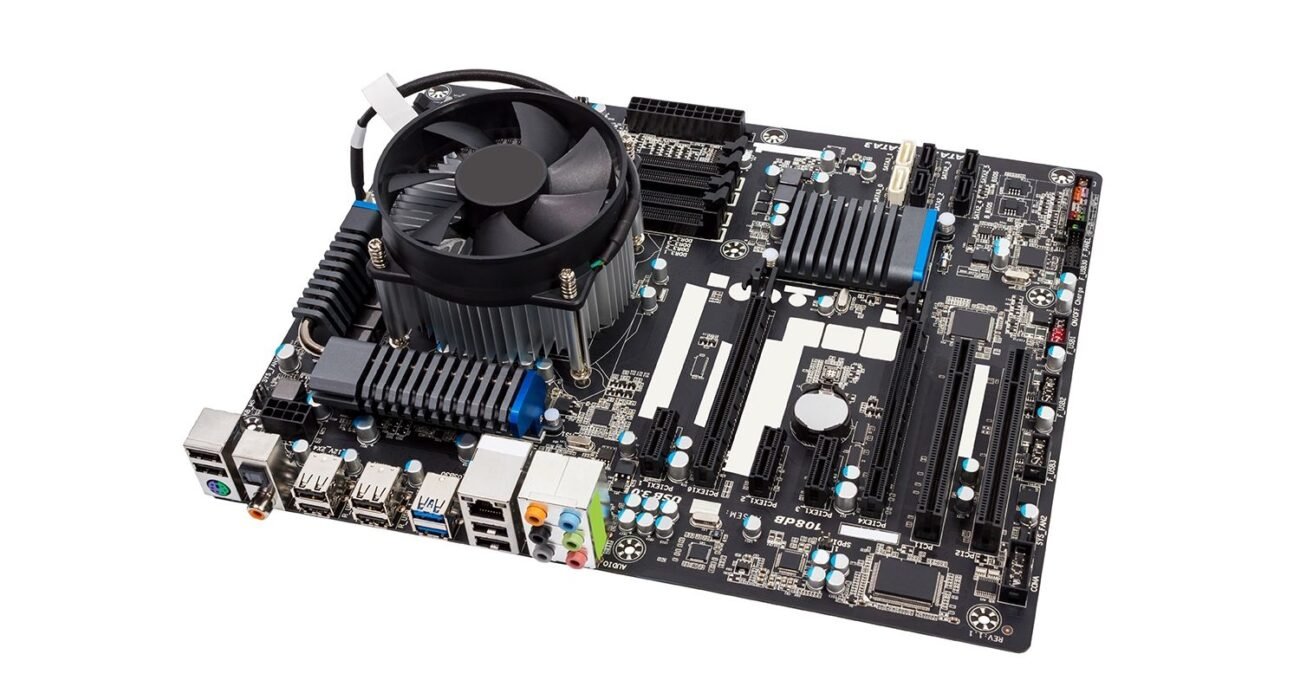
You should take into account both the total amount of RAM your motherboard supports and the number of RAM slots it has. Just by glancing at the motherboard, you can tell how many slots it has; but, to find out how much RAM it can support, you must obtain the motherboard’s specifications from the manufacturer. If your computer is working, you may also use a system checking application to find out how much RAM your motherboard supports.
Your motherboard can accommodate a different amount of RAM than you require, and you don’t necessarily need to maximise it. If you discover that your computer isn’t operating as efficiently as you would want, you can always start with two RAM modules and add two more later.
RAM speed is important to some extent because it can enhance performance, although capacity normally takes precedence. Adding more RAM will usually have a greater impact on performance than spending a lot of money on slightly faster RAM.
Although most RAM is backward compatible, your motherboard can support a variety of RAM speeds. This implies that RAM will simply operate at a reduced speed if you unintentionally purchase RAM that is faster than your motherboard can support. Depending on the motherboard’s architecture and installation sequence, adding RAM modules with varying speeds may also result in them all operating at the slowest module’s speed.
Check the motherboard’s manual or specifications for the DDR generation (such as DDR4, DDR5), maximum capacity, and supported speeds to identify compatible RAM. As an alternative, find out the model of your motherboard by using a system information tool on your computer or a compatibility tool from a memory manufacturer like Crucial or Kingston. While laptops use smaller SO-DIMMs, desktop PCs require DIMMs.
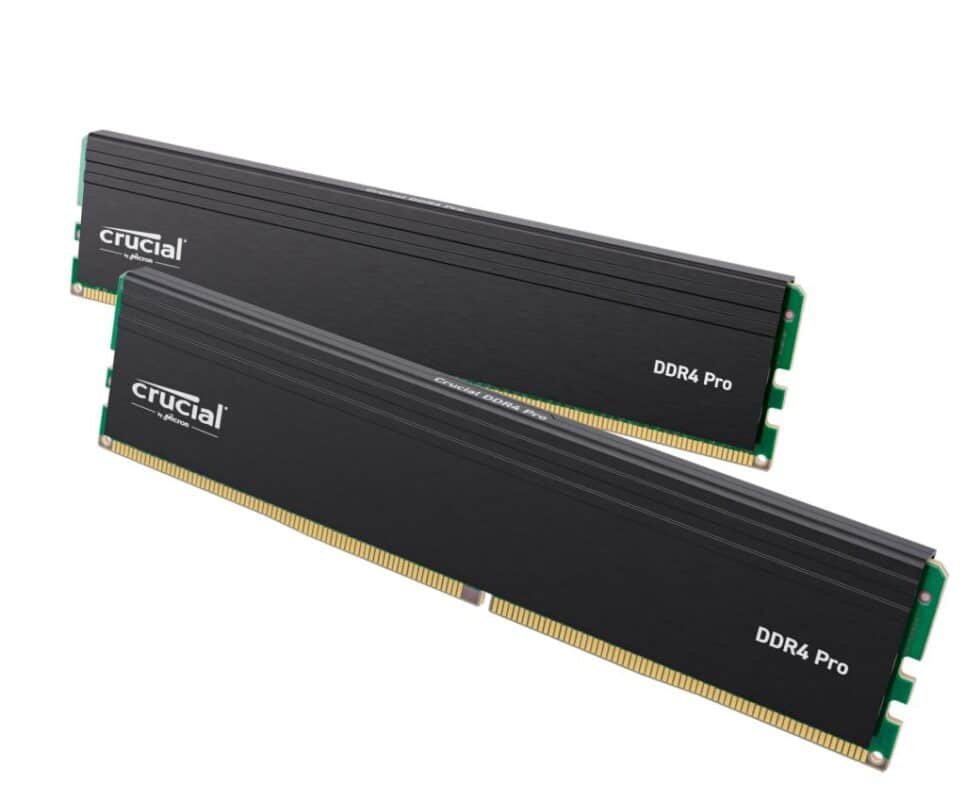
| Generation | Year of release | Number of pins (DIMM/SODIMM) | Key (notch) Layout |
| DDR | 2002 | 184/200 | Center |
| DDR2 | 2004 | 240/200 | Center |
| DDR3 | 2007 | 240/204 | Offset to left |
| DDR4 | 2014 | 288/260 | Center |
One of the first things to think about before beginning your investigation is RAM compatibility, in addition to choosing RAM that performs well. In other words, if the two parts aren’t compatible, they won’t function and you might be wasting your money.
Speeds are a little less important than the other factors mentioned above because the majority of RAM modules are backward compatible. However, speed is a crucial factor in enhancing the entire performance of your computer, so it is definitely worth taking into account.


